If you can't post on Instagram, the problem is almost always a poor internet connection or a temporary app glitch. Before worrying about account bans, try refreshing your connection and restarting the app, as these two steps resolve the vast majority of upload failures.
Why you can't post on Instagram
The most common verified reasons for being unable to post include a poor or non-existent internet connection, corrupted app cache or software bugs, account restrictions from violating Community Guidelines, missing device permissions for your camera or gallery, and an outdated version of the Instagram app. Posts with more than 30 hashtags attached can fail to upload. Content aspect ratio exceeding Instagram's limits can prevent posting. Instagram may be unable to read the video or photo format you're trying to post.
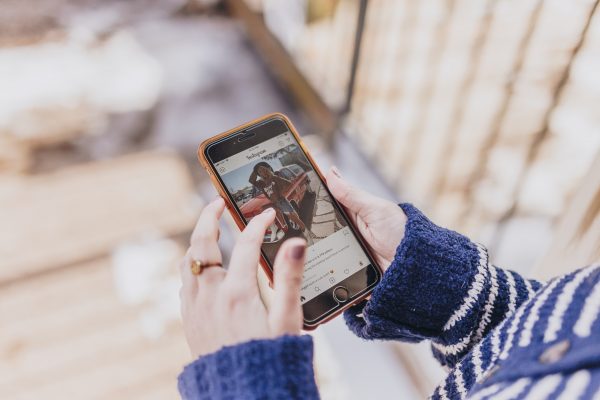
1. Check your internet connection
A poor or non-existent internet connection is the primary reason posts fail to upload. To fix this, toggle your Wi-Fi or cellular data off and on, or reboot your router. This simple refresh is the most common solution for Instagram posting errors.
2. Restart the Instagram app and your device
Temporary software glitches often prevent posts from going through. Force-close the Instagram app completely, then relaunch it. If that doesn't work, restart your phone or tablet to clear deeper temporary issues.
3. Log out and back into your account
Authentication or session-related posting errors can be resolved by signing out of your Instagram account and signing back in. This refreshes your login token and often fixes errors that appear without any other warning.
4. Check your Instagram account status
Your account may be blocked or limited due to violations of Community Guidelines or Recommendation Guidelines, which will prevent you from posting. To check, go to your Profile, tap the Menu (three horizontal lines), then "Settings and privacy," and finally "Account status." Instagram prohibits content that promotes violence, illegal activities, sexual content (with limited exceptions), hate speech, bullying, harassment, self-harm, or infringes on intellectual property rights. Violating these guidelines can lead to content removal, account restrictions, or permanent bans.
5. Make sure Instagram has camera and gallery access
Instagram requires access to your device's camera and gallery to upload media. On both Android and iOS, verify that permissions for camera and photos are enabled in your device's main Settings app under the Instagram app entry.
6. Clear Instagram's cache (or reinstall on iOS)
For Android devices, clearing the app's cache can resolve posting problems. Navigate to Settings > Apps > Instagram > Storage & cache > Clear cache. For iPhone and iPad users, clearing the cache requires uninstalling and then reinstalling the Instagram app. On iOS, clearing Instagram's cache can be done via Settings > General > iPhone Storage > Instagram > Offload App, without fully uninstalling.
7. Update or reinstall the Instagram app
Outdated app versions can cause posting issues. Check the Google Play Store or Apple App Store for available updates. If no update is available, uninstall and reinstall the app to fix persistent bugs.
8. Reduce your photo or video file size
Videos that are too large or too long may fail to upload. For Reels, keep videos under 60 seconds; for standard posts, videos should not exceed 15 minutes. The ideal Instagram image post is square with a 1080x1080-pixels resolution and a 1:1 aspect ratio. For landscape photos, use 1080x566 pixels with a 1.91:1 aspect ratio. For vertical posts, use 1080x1350 pixels with a 4:5 aspect ratio. Video file sizes should not exceed 4GB. If you need help managing your phone photos and media, consider using a dedicated file compression tool before uploading.
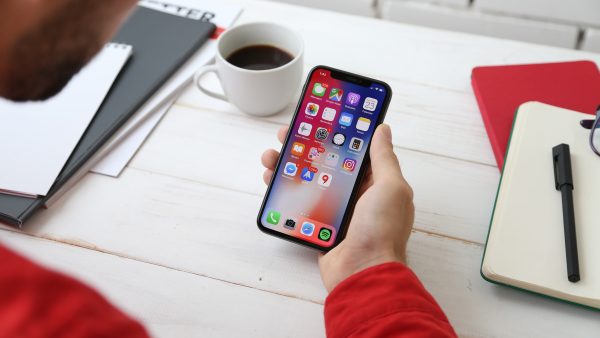
9. Turn off data saver and free up storage
Instagram's data saver setting can hinder posting. Additionally, Instagram saves all your posts to local storage by default. If your phone runs out of room, posts can fail. Disable 'save posted videos' and 'save posted photos' in Account > Original post settings to prevent local storage issues. You can also clear your phone's memory, delete files, and uninstall apps to free up space. If you're experiencing broader connectivity issues, check out our guide on 10 easy fixes for mobile data not working on Android or the best fixes for cellular network not available for voice calls. For managing your follower list, consider the 13 best Instagram unfollow apps to filter out unwanted accounts.
Frequently Asked Questions
Why can't I post more than one photo on Instagram?
If your Application Background Refresh setting is disabled for Instagram, the app may stop your multiple uploads when switching apps. Alternatively, your account could be temporarily blocked if Instagram considers your frequent uploads as spam. Check back after an hour and try again.
Why can't I post on Instagram Story?
You cannot repost others' posts or stories to your Story if the source account is private. You are only allowed to repost others' stories if you are tagged by the owner. If you are not reposting content, the problem is likely an unstable internet connection.
Why can't I post a comment on the platform?
The most common reasons include an unstable internet connection, Instagram being down, or using a banned word in the comment. You also cannot mention more than five people in one comment, and you must avoid spamming comments. You may also be blocked by the person whose post you are commenting on.
Why can't I repost a post on Instagram?
Unlike other platforms, Instagram does not allow you to repost another account's content as a standard post. You can only share others' content to your Instagram Story, following the relevant guidelines about tagging and private accounts.